
User manual · 06
Optimize: change what AI says
The Analytics screens tell you where you stand. The Optimize screens turn that into work you can do: on your website, and on the sites AI reads.
Crawler Access: can AI read your website?
AI assistants learn about websites through programs called crawlers (or bots). A file on your website, robots.txt, tells each crawler what it may read. Crawler Access reads that file and tells you, bot by bot, who is let in.
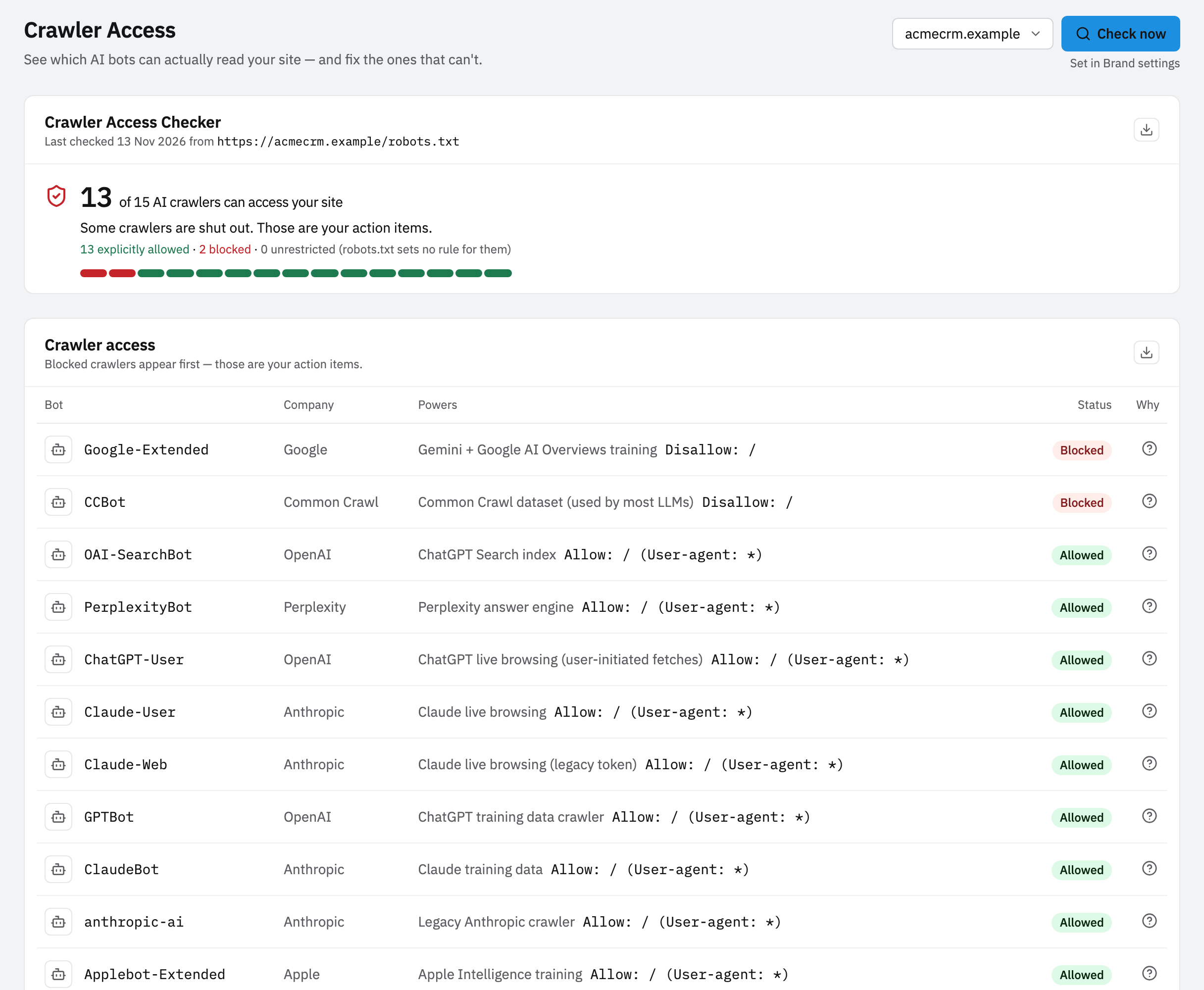
- Crawler Access Checker: the headline says how many AI crawlers can access your site, when it was last checked and from which robots.txt. A coloured strip shows allowed and blocked crawlers at a glance.
- Crawler access: the table lists each Bot, its Company, what it Powers (for example, ChatGPT's search index or Claude's live browsing), its Status (Allowed or Blocked) with the rule from your file that decided it, and Why, which explains that rule. Blocked crawlers come first: those are your action items.
- robots.txt: your file is shown exactly as it was fetched, so a fix can be made against the real thing.
- Check now: run a fresh check after you change your site. If you check again within a few minutes, you see the last result.
llms.txt generator
The same screen has an llms.txt generator. An llms.txt file is an emerging convention: a clean, structured summary of your site for AI models, like robots.txt but for discovery rather than access. Fill in your Site name, a One-line description and your key Links. The Preview shows the file as you type; Copy or Download it and add it to your website.
Site Audit: the technical health of your website
Site Audit is a full health check of your website: the kind of problems that stop pages being found, read or ranked. Each new audit shows what changed since the previous one. Ask the Ripplix team to switch Site Audit on for your site.
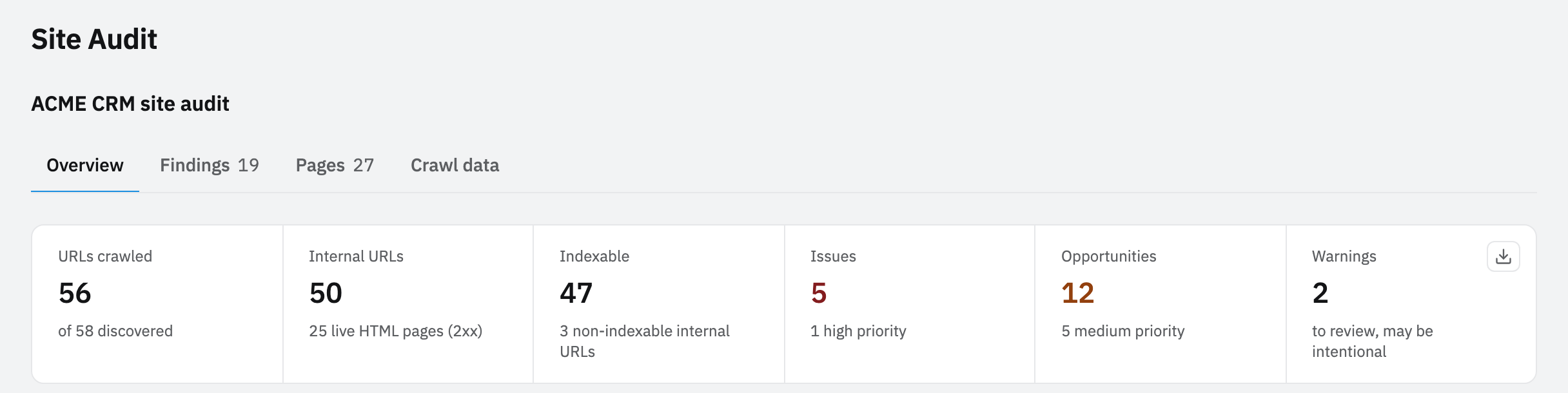
The screen has four tabs: Overview, Findings, Pages and Crawl data.
- Overview: how many URLs were crawled, how many are Indexable (allowed into search results), and counts of Issues, Opportunities and Warnings.
- Findings by type and priority: a grid of every check that flagged at least one URL, by type and by priority (High, Medium, Low). Select a cell to see those findings.
- Fix first: issues ranked by priority, then by how many URLs they touch. Each opens the list of affected URLs and a note on how to fix it. The small number beside each shows the change since the last audit.
- Where the findings sit and Site sections: which kinds of checks, and which parts of your site, have the most problems.
- Internal response codes and Crawl depth: whether your pages answer properly, and how many clicks each page is from your home page.
- Findings, Pages and Crawl data tabs: filter every finding and page, then copy the URLs or the table to paste into a spreadsheet.
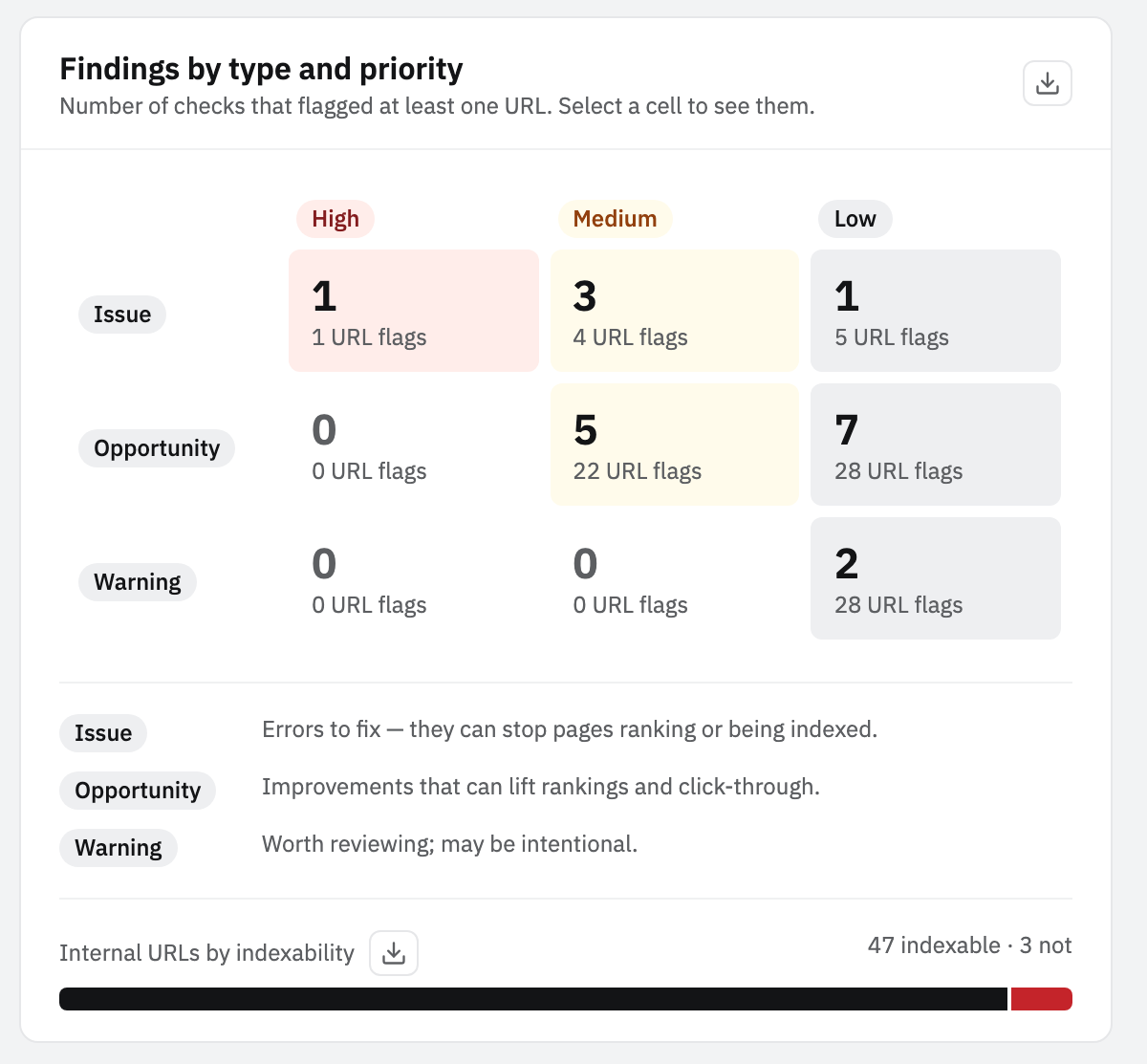
| Type | What it means |
|---|---|
| Issues | Errors to fix; they can stop pages ranking or being indexed |
| Opportunities | Improvements that can lift rankings and clicks |
| Warnings | Worth reviewing; they may be intentional |
Content Optimization: make one page AI-ready
Content Optimization checks one page of your website against the questions it should win, then shows you exactly what to change.
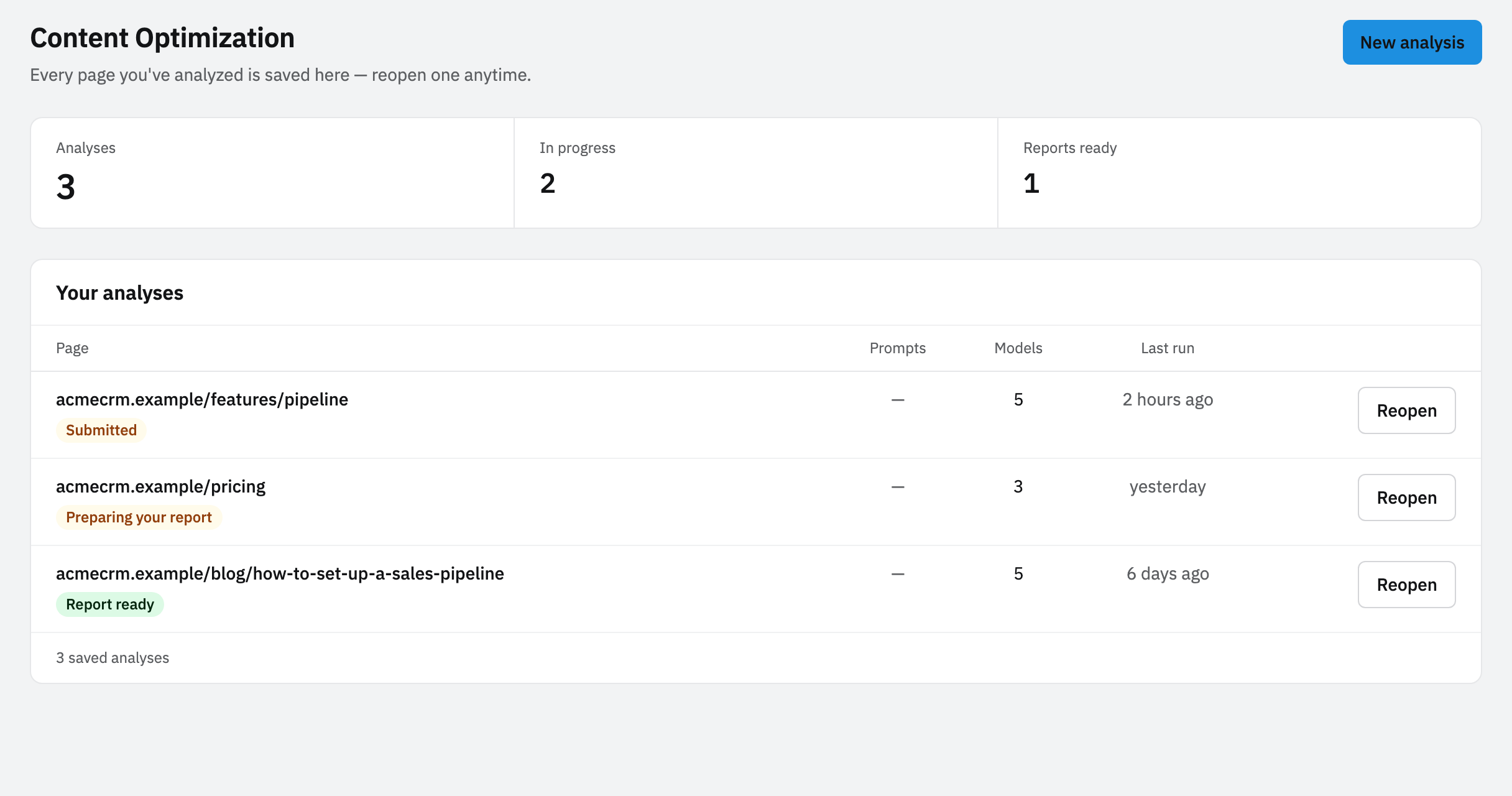
Start an analysis
- Press New analysis.
- Enter URL: the page's address. It must be a page on your own website, as set in Brand Settings.
- Select models: choose which AI assistants to test the page against.
- Wait for results: follow its progress: Submitted, Getting answers, Preparing your report, Report ready.
Every page you analyse is saved under Your analyses, with how many models it was tested on and when it last ran. Press Reopen to open any of them again.
Each analysis uses credits. Each brand can have up to three analyses in progress at once.
The report

The report is a list of recommendations, the most valuable first. Each one names one change to make to your page, with a tag for the kind of improvement and how much work it is. The number on the left shows how much each change is expected to help, so you know where to start.
Reports download as a PDF from Export at the top of the page.
Win/Loss Analysis: why you win or lose one question
Win/Loss Analysis explains one question in depth: which brands AI recommends for it, what it says about them, and why you win or lose.
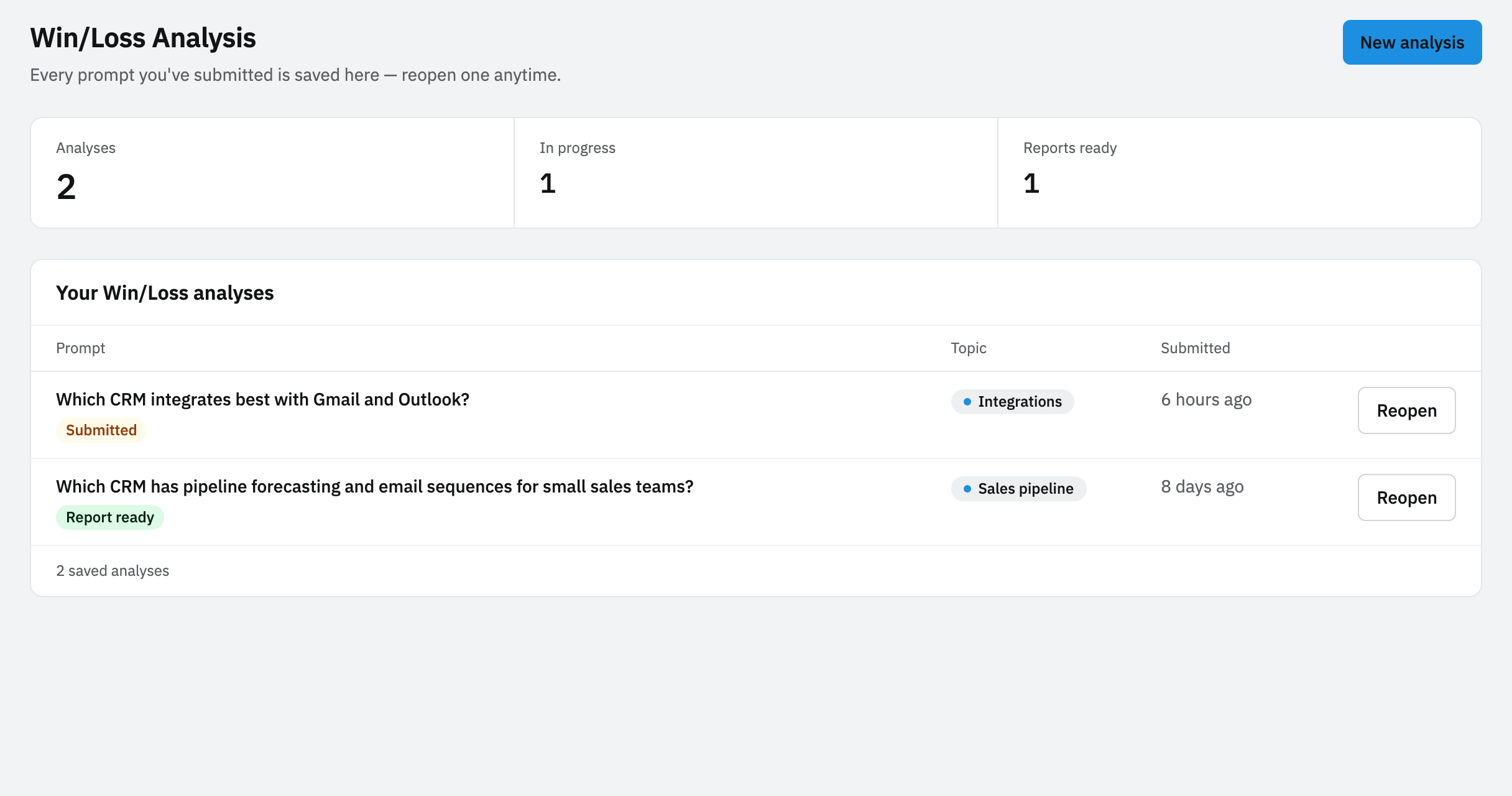
- Press New analysis and Select prompt: pick one of your tracked prompts that has recent answers.
- Wait for results. The analysis is written from the answers Ripplix already has.
Every prompt you submit is saved under Your Win/Loss analyses, with its topic and when you submitted it.
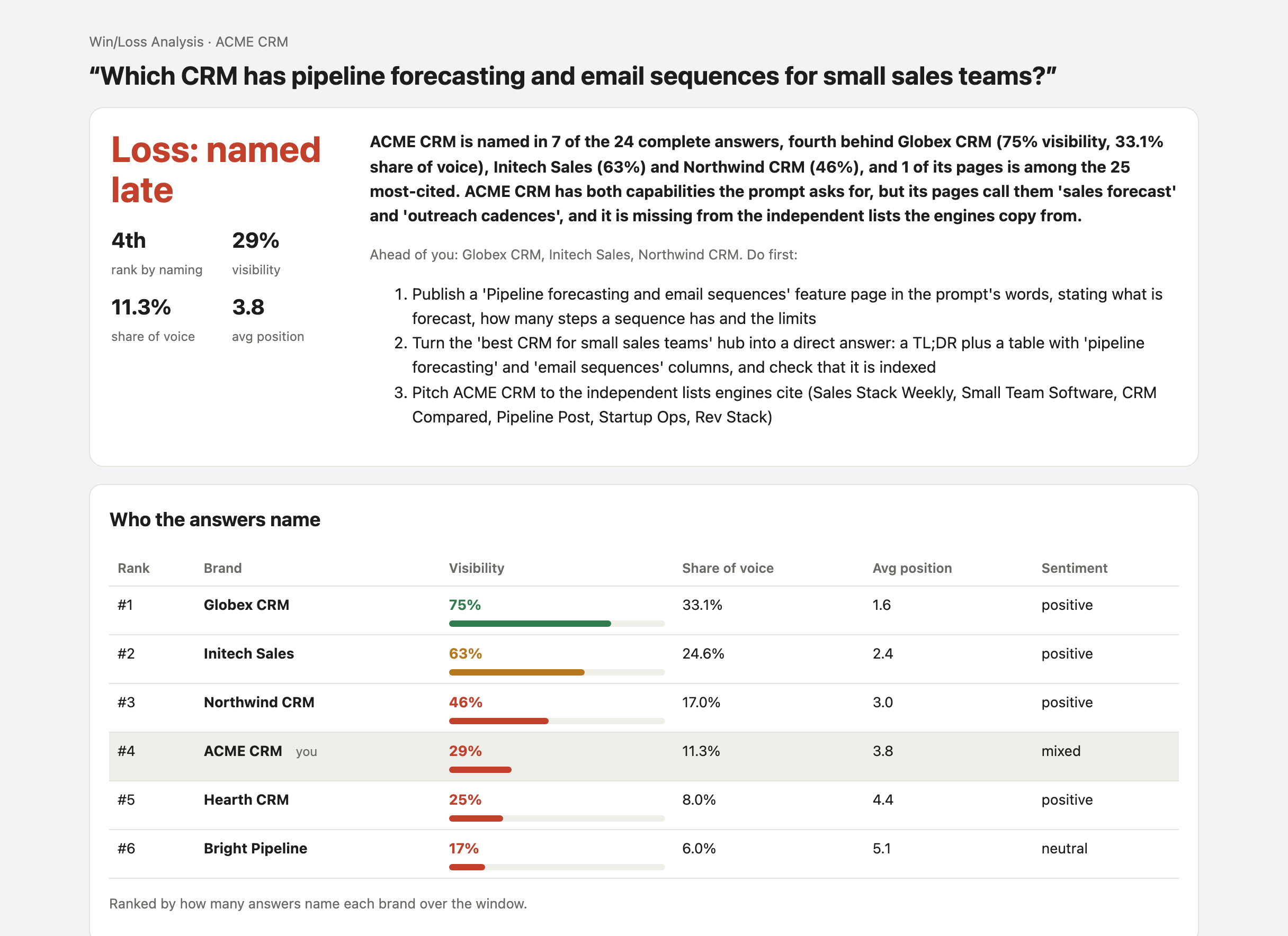
The report opens with a verdict, such as ACME's Loss: named late, and your rank, visibility, share of voice and average position for that question. It explains in plain sentences why you lost, lists what to do first, and shows Who the answers name: every brand, ranked.
A Win/Loss analysis uses no credits, but your credit balance must be above zero to request one. Each brand can have up to three in progress at once, and reports download as a PDF.
Discussions: the conversations AI listens to
Discussions lists the Reddit and Quora threads that AI answers cited in your date range, with how often each was cited and in how many of those answers your brand was named.
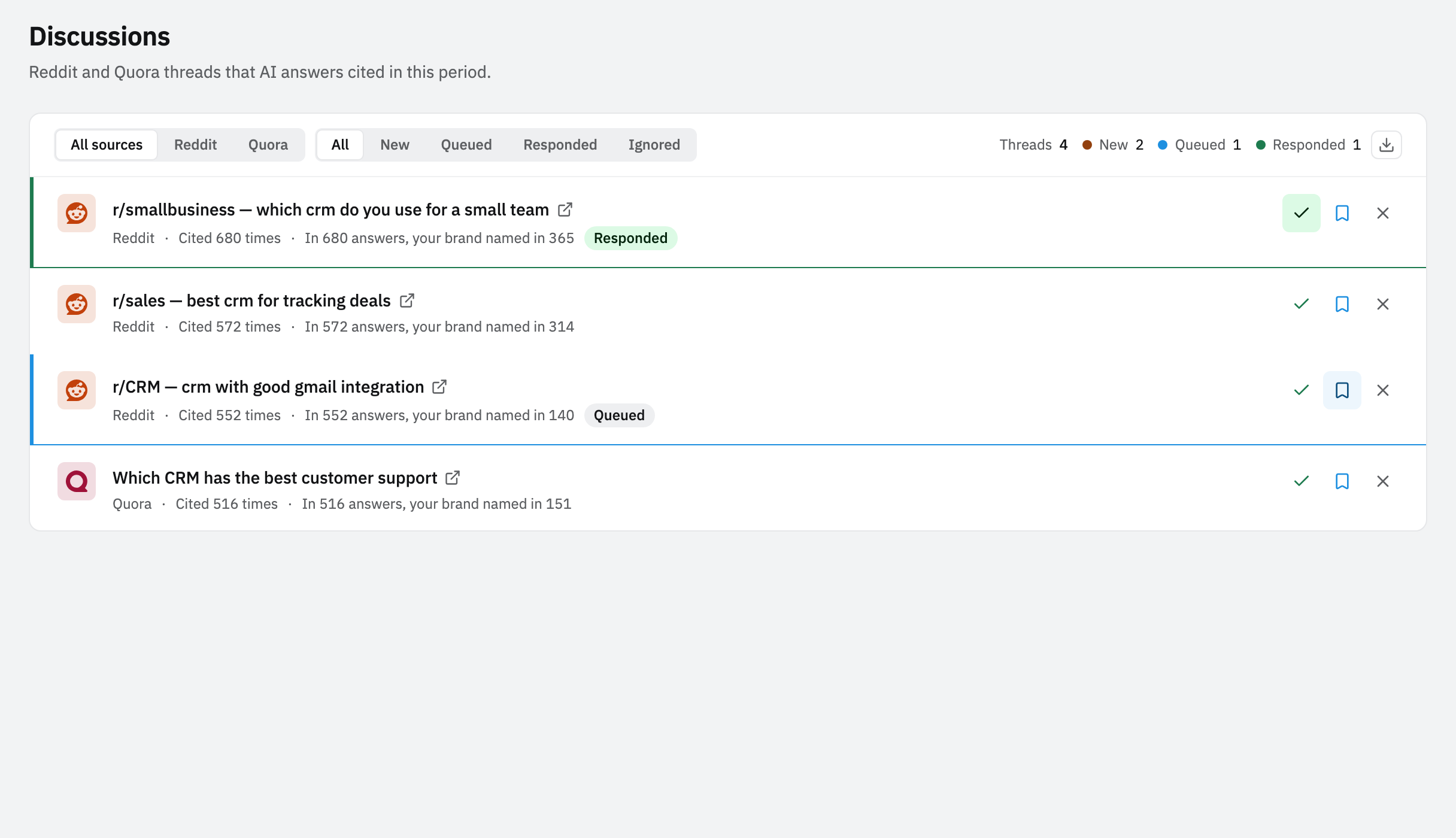
Work through them like an inbox. Each thread has three buttons: Responded (you have replied), Queue (to reply later) and Ignore (set it aside). Filter by source (All sources, Reddit, Quora) and by status: New, Queued, Responded or Ignored.