
User manual · 07
Settings: what Ripplix measures, and your account
The Settings screens control what Ripplix measures for each brand, and hold your plan, credits and team.
Brand Settings
Brand Settings holds what Ripplix knows about your brand: its names, domains, industry, market and competitors. Getting these right is what makes every other number right.
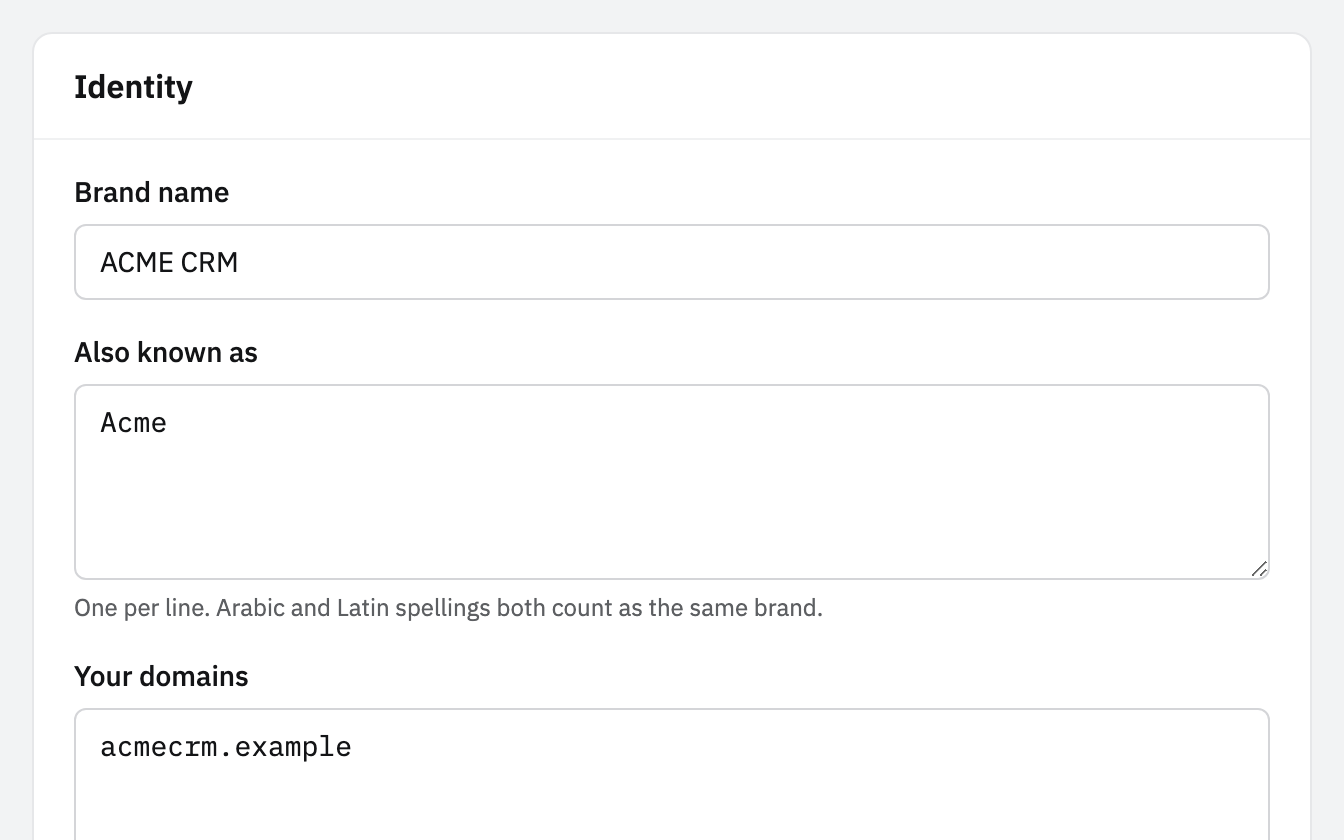
- Identity: your Brand name, Also known as (other spellings, one per line), Your domains, Industry and Target market. Press Save after a change. The fields are explained in Getting started.
- Measure this brand: switch it off to pause measuring. Your questions and your history are kept.
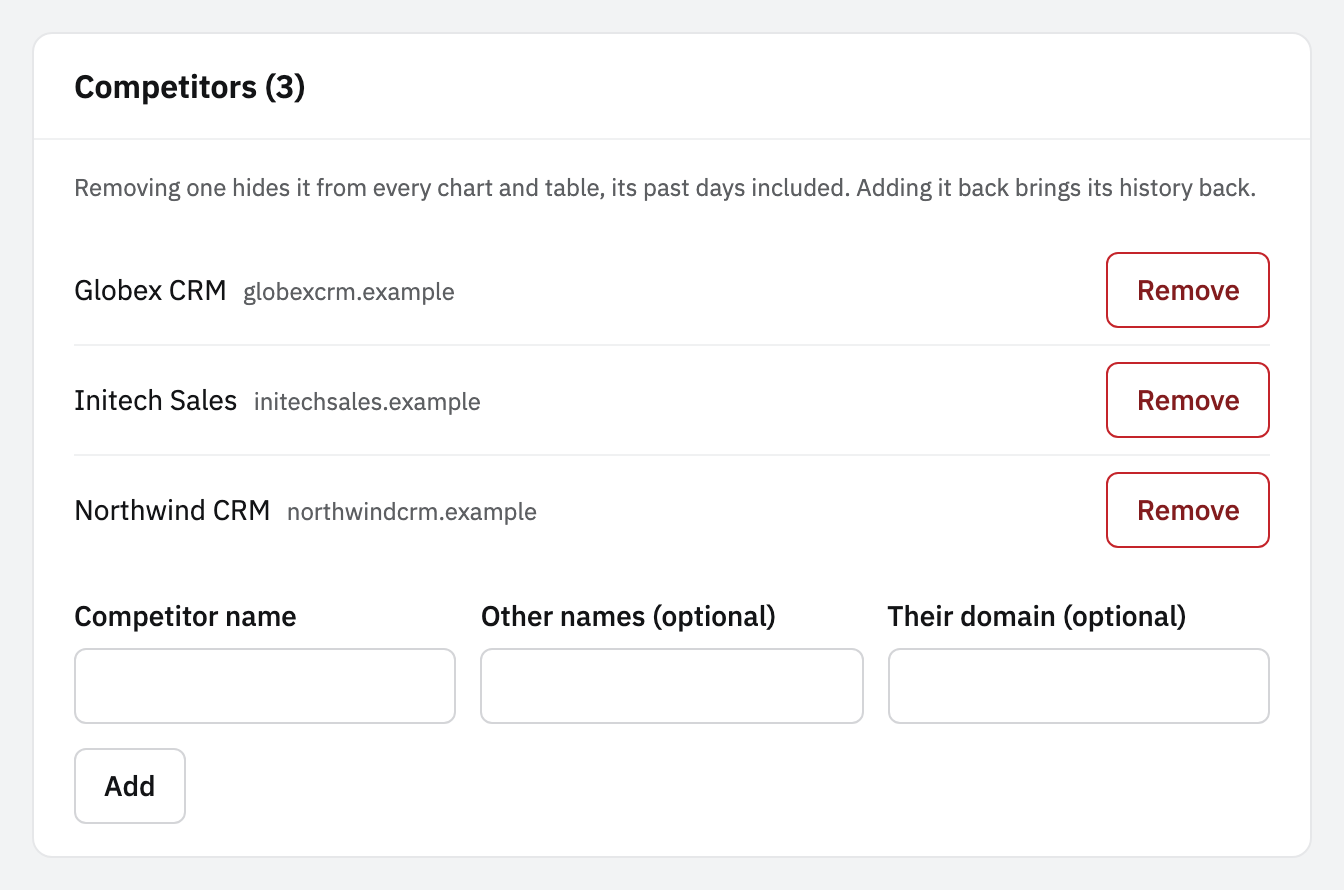
- Competitors: add each rival's name, other names and domain, then press Add. Remove hides a competitor from every chart and table, past days included. Add it back and its history comes back too.
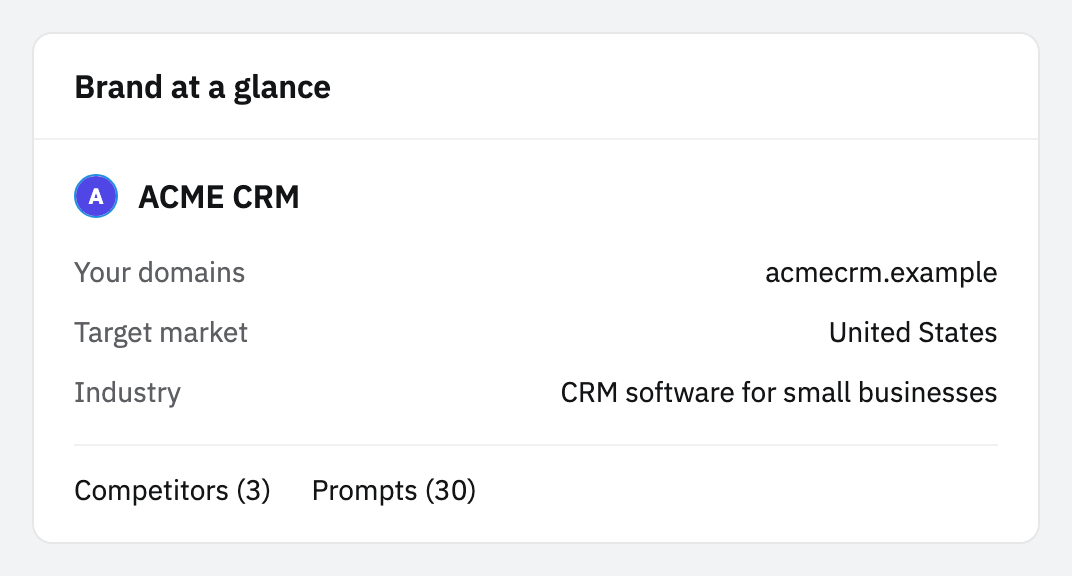
- Brand at a glance: a summary of your domains, target market and industry, and how many competitors and prompts the brand has.
- Add another product: each product has its own prompts, answers and charts. Switch between them with the product name in the header.
Prompt Settings
Prompt Settings is the list of questions Ripplix asks the AI assistants.
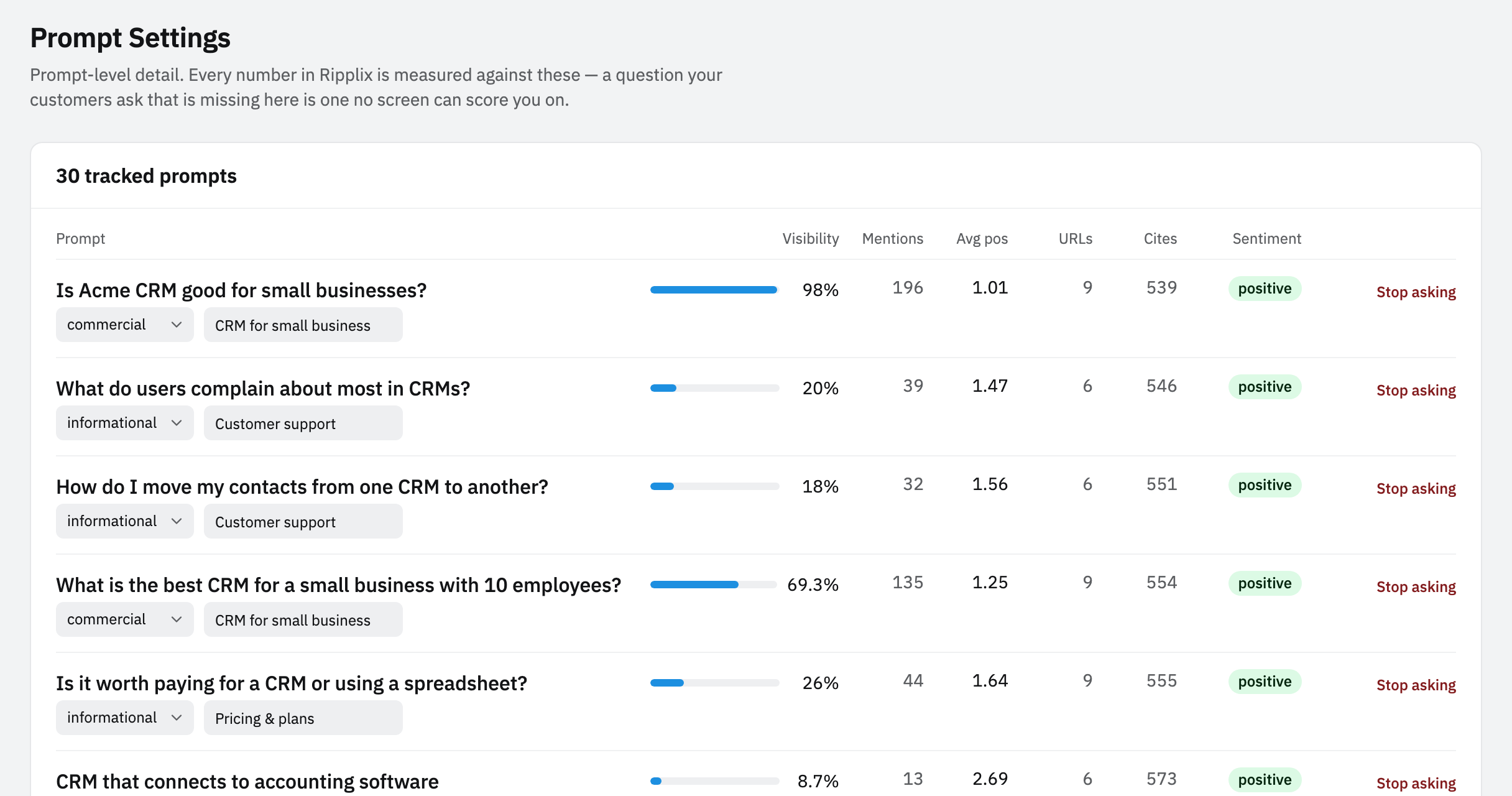
- The table: every tracked question with its Visibility, Mentions, Avg pos, URLs, Cites and Sentiment.
- Change a topic or intent: use the intent menu (it shows the current intent, such as "commercial") and the topic box beside it (it shows the topic, or Uncategorised) under each question.
- Stop asking: takes a question off your tracked list. Its past answers stop counting in charts and tables, but nothing is deleted.
- Add questions: paste one question per line, as many as you like, then press Add these. The line above it shows how many questions you track out of your plan's limit. Ripplix skips duplicates and anything over the limit, and tells you so.
Tagging new prompts uses a small amount of credits. With none left, new prompts are left untagged: they sit under Uncategorised with no intent or funnel stage. You can set the topic and intent yourself; ask the Ripplix team to set the funnel stage.
- Write how buyers talk, not how you advertise: "Which CRM is easiest to set up for a small team?" rather than "easy CRM software".
- Add context: who is asking and what they need ("for a 10-person sales team", "under $50 a month"). Context changes which brands AI names.
- Mostly general questions. Questions that already name your brand will almost always mention you, so they tell you little about new buyers.
- Cover each topic you sell in, with a few questions each.
Prompt Discovery
Prompt Discovery finds the questions real people ask about your category, worded the way a normal person would type them. It needs nothing from you to set up.
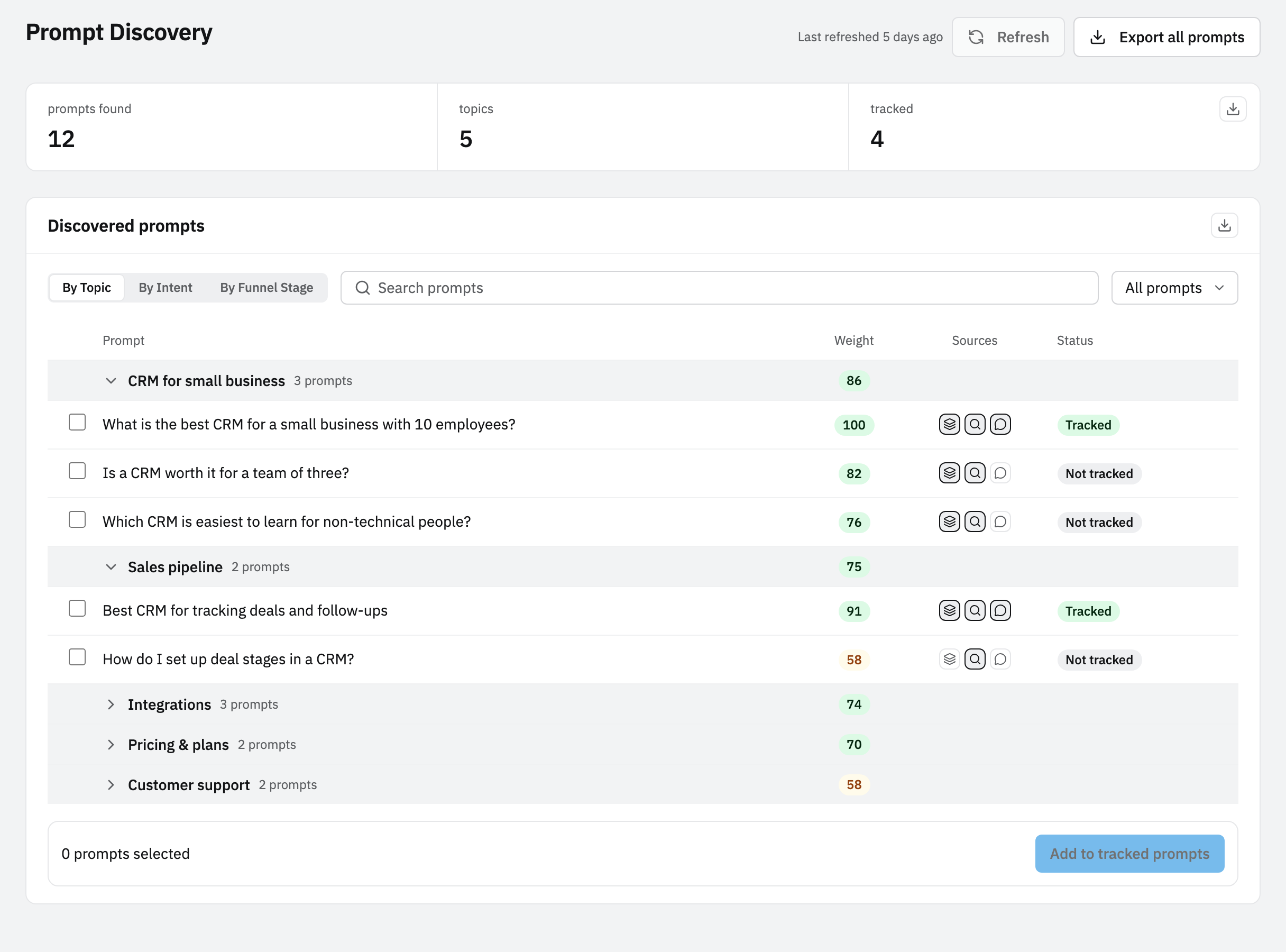
- Press Refresh. A refresh takes about five minutes and uses credits. You can leave the page while it runs.
- Browse the Discovered prompts, grouped By Topic, By Intent or By Funnel Stage. Each shows a Weight for how likely customers are to ask it, its Sources (the evidence that people really ask it) and whether it is Tracked yet.
- Tick the ones you want and press Add to tracked prompts. They are measured from the next daily update.
Export all prompts downloads the full list.
Credits
Your subscription covers all the daily measuring Ripplix does for you. That never spends credits. Credits pay for the extra work you start yourself.
| Work you start | Uses credits? |
|---|---|
| A Content Optimization analysis | Yes |
| A Prompt Discovery refresh | Yes |
| A Brand perception summary on Sentiment | Yes |
| Tagging new prompts you add | Yes, a small amount |
| A Win/Loss analysis | No, but your balance must be above zero |
| Daily measuring of your prompts | Never |
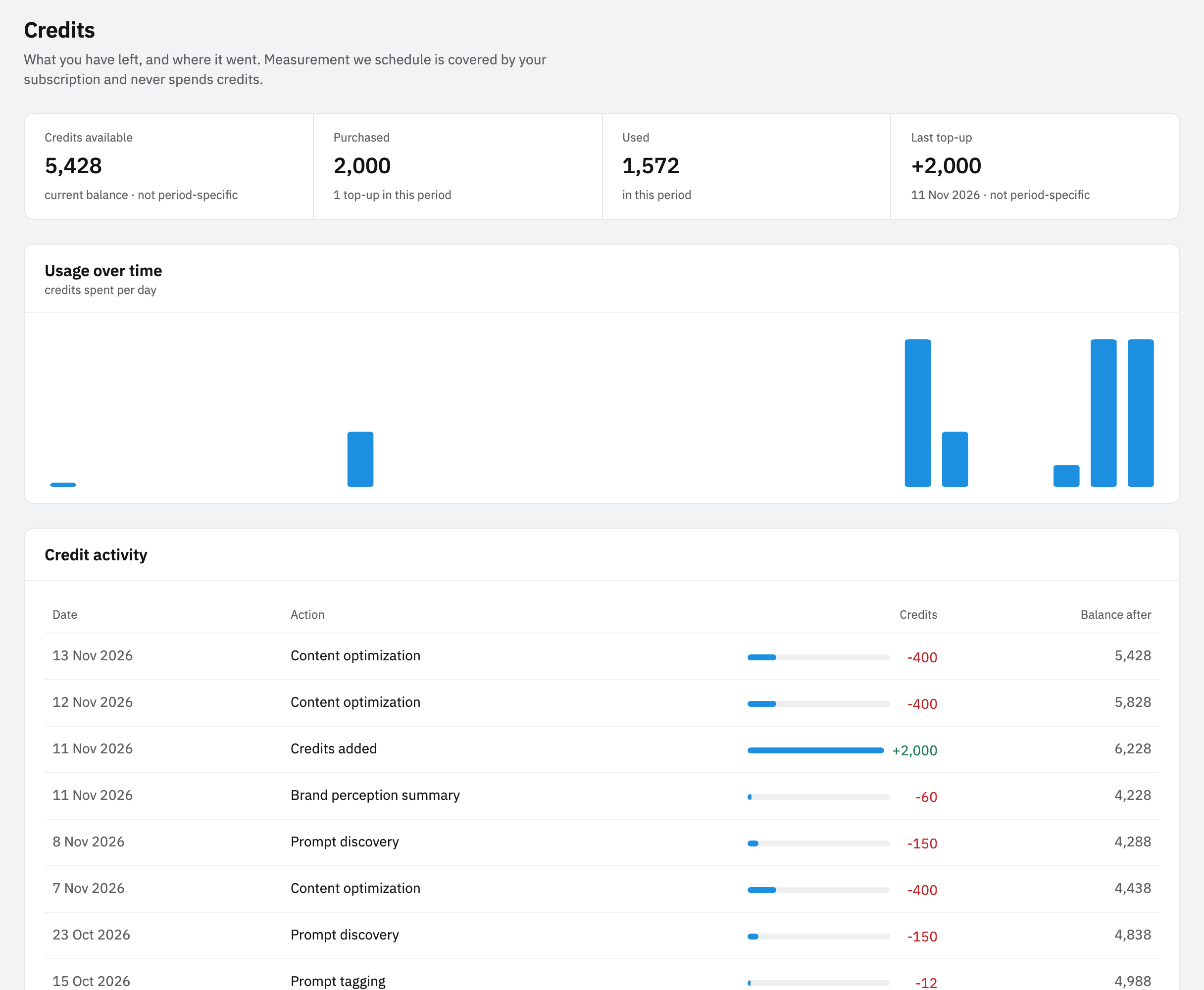
Credits shows Credits available, how many were Purchased and Used in the period, and your Last top-up. Usage over time charts what you spent each day, and Credit activity lists every movement with its date, the action, the credits and your balance after it.
Your plan includes a monthly credit allowance, shown as Credits a month on Subscription. If you run out, anything you start by hand pauses until you top up, but daily measuring carries on. To top up, contact the Ripplix team.
Subscription
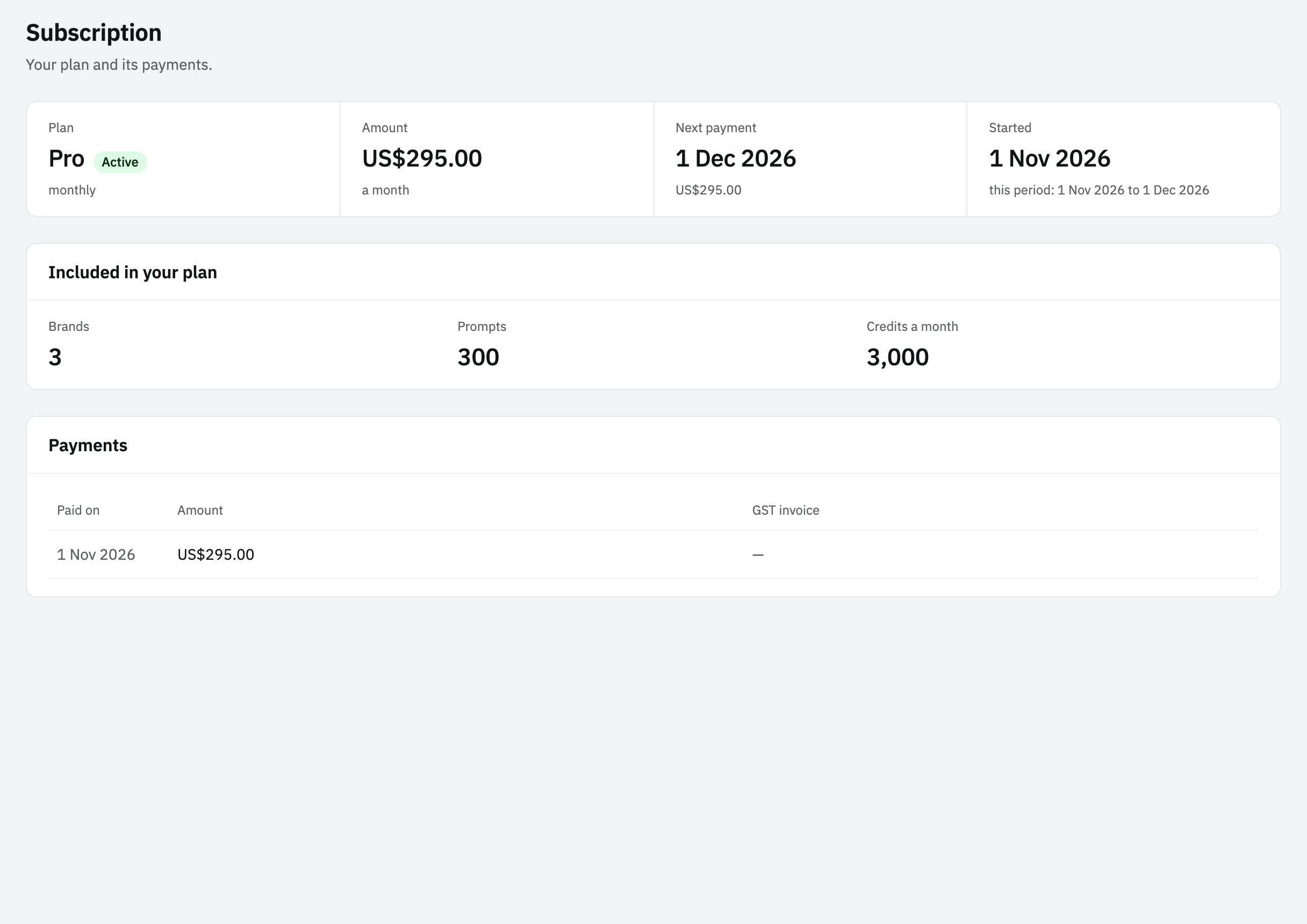
Subscription appears once your plan is paid. It shows your plan and its status, the amount, your Next payment (or the date you are paid until), what is Included in your plan (brands, prompts and Credits a month), and every payment with its GST invoice where one applies. To cancel, tell the Ripplix team at any time.
Team
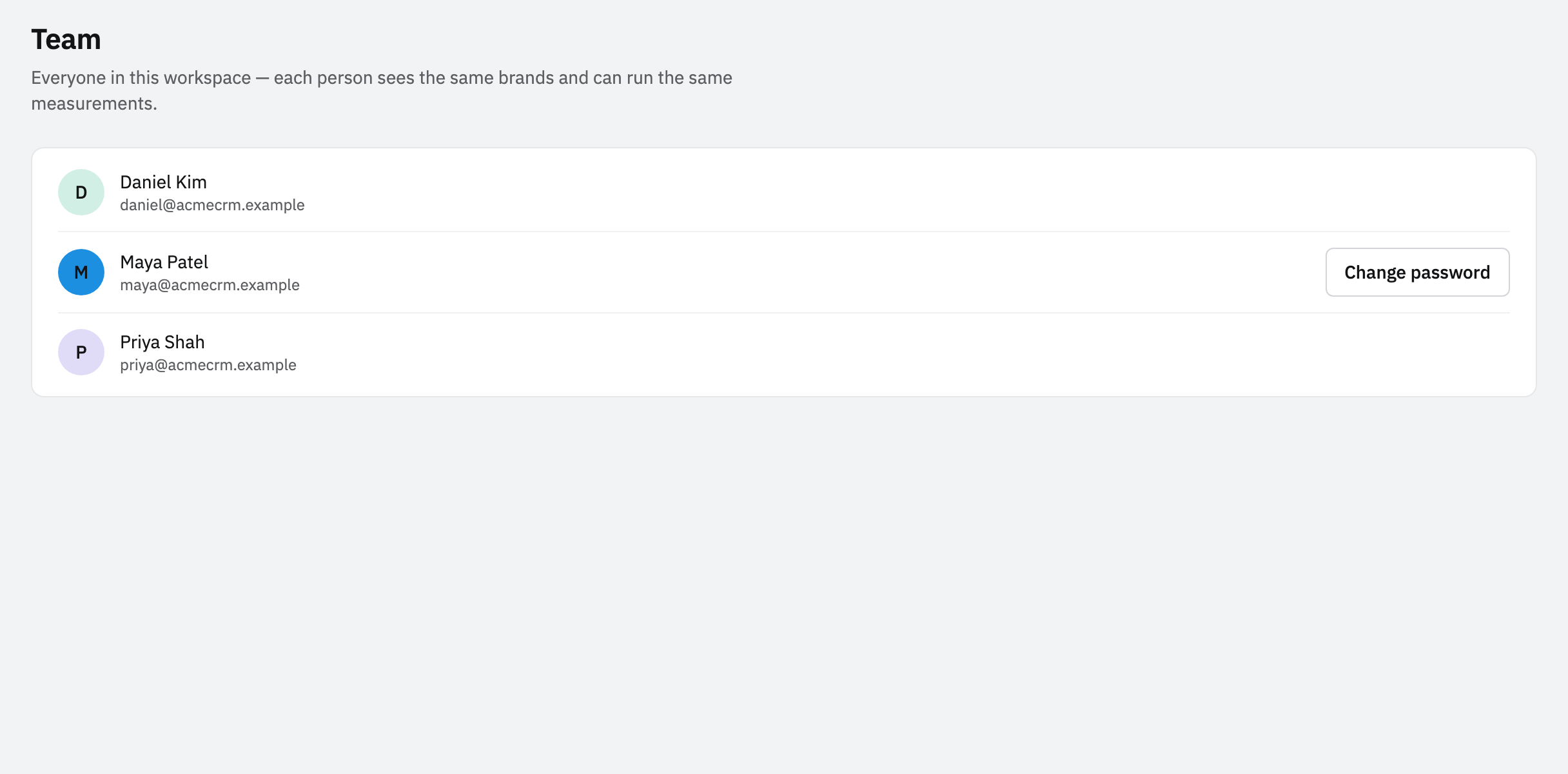
Team lists everyone in your workspace. Everyone sees the same brands. To add or remove a person, contact the Ripplix team.
To change your own password, press Change password beside your name. Changing it signs you out on your other devices.
Claude & ChatGPT: ask your own AI about your Ripplix data
Connect your own Claude or ChatGPT to Ripplix, and ask about your data in plain words: "Which topics did we lose ground on this month?" or "Summarise our sentiment against our main rival."
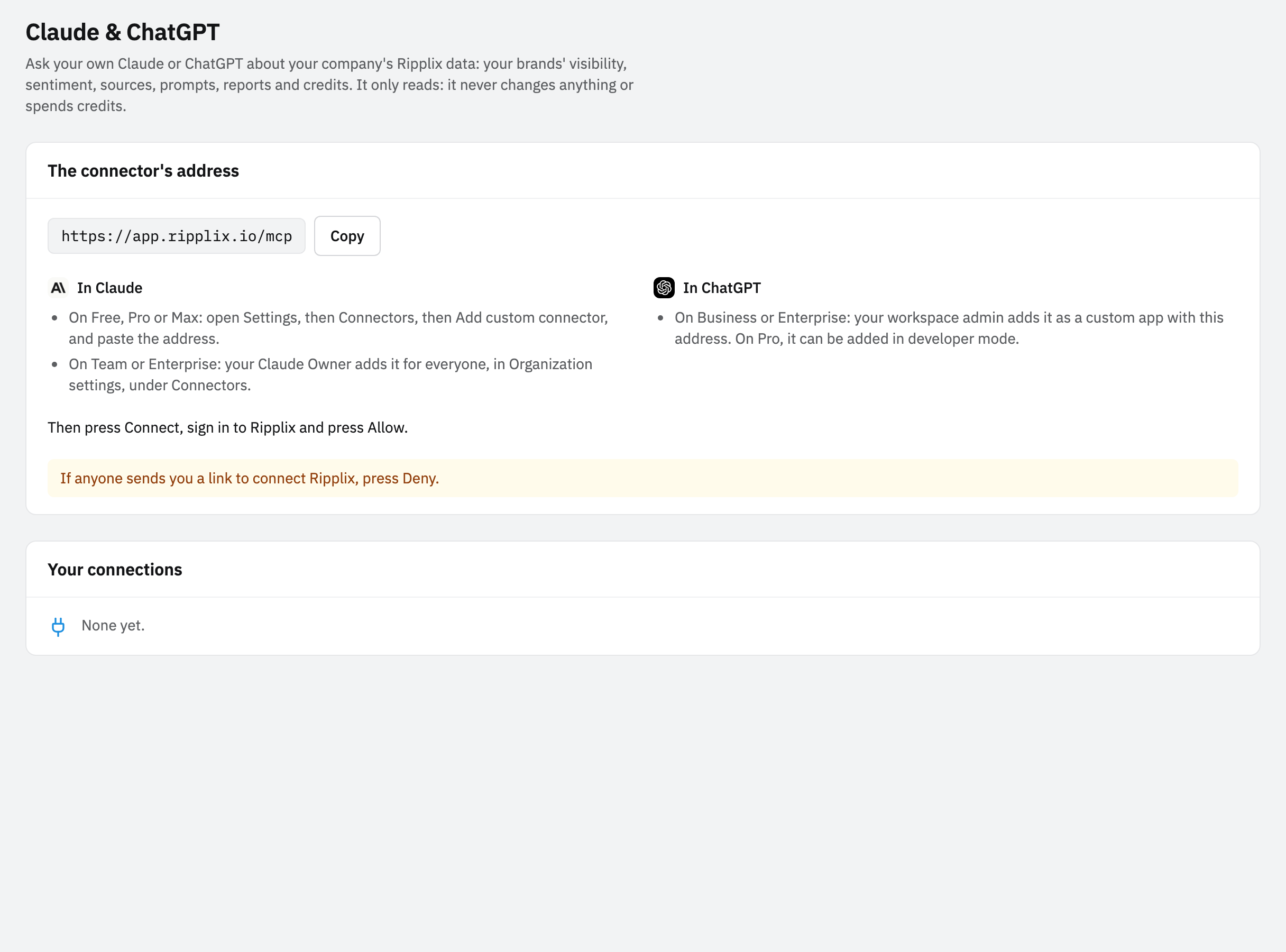
The connector can read your brands' visibility, sentiment, mentions and citations, sources, topics, prompts, fan-outs, referral traffic, crawler access, site audit, discussions, reports and credits. It only reads. It never changes anything or spends credits.
To connect:
- Copy The connector's address from the screen.
- Add it to your assistant:
- Claude (Free, Pro or Max): open Settings, then Connectors, then Add custom connector, and paste the address. On Team or Enterprise, your Claude Owner adds it for everyone, in Organization settings, under Connectors.
- ChatGPT (Business or Enterprise): your workspace admin adds it as a custom app with this address. On Pro, it can be added in developer mode.
- Press Connect, sign in to Ripplix and press Allow.
Your own connections are listed under Your connections, where you can Disconnect one. To connect again after that, remove Ripplix from your assistant's connectors and add it back.
The connector is switched on per company. If the screen says it is not switched on yet, ask the Ripplix team.
Language and look
Ripplix is available in English and Arabic (العربية). To change your account's language, ask the Ripplix team. You can choose a light or dark Theme and a colour Tint from the bottom of the left menu.
Connections and exports
- Google Analytics and Search Console: Referral Traffic needs your Google Analytics 4 property, and SEO Performance needs your Google Search Console property. The Ripplix team connects both for you. Once connected, the data is brought in every day.
- CSV: on Overview, the Analytics screens and most Optimize screens, Export in the top bar downloads the screen's charts and tables. Most cards and tables also have their own download button, and some have Export CSV or Copy as CSV.
- PDF: Export › PDF (this page) saves the page you are on. Content Optimization and Win/Loss reports download as PDF. Settings screens have no Export.